Friday, August 30, 2013

Digg Finally Launches on Android


Digg released their new Android app this afternoon, bringing yet another RSS reader to the table for those looking for the best Google Reader replacement. At first glance, it’s hard to argue against it’s beautiful design. It (mostly) follows Android design guidelines with its swipe gestures and side navigation menu, is as clean as you can get thanks to the white and black theme, and runs incredibly well. This should definitely give Feedly a run for its money, assuming it can continue to update with features. With that said, for a first launch, this is a solid start. 
Notable features:
  • Quickly swipe back and forth through Digg’s Top Stories, as well as through any feed or folder in Digg Reader. Choose from either the web view or the parsed text view.
  • Digg or save any story;  send it to Instapaper, Pocket or Readability (automatically upon save, if you choose);  and share to Facebook, Twitter, Google+, LinkedIn, Tumblr, WordPress, Buffer, Dropbox, Google Drive, email, text or any other sharable app on your device.
  • Search Digg Top Stories.
  • Sort your Digg Reader items by popularity to quickly see which of your items are the most talked-about on the social web.
  • Log in to Digg Reader with your Google, Facebook or Twitter account.
  • Search for and add new feeds. Create, organize and delete folders.
  • If you so choose, post your diggs automatically to your Facebook timeline.
digg android
Via:  Digg
Continue Reading...

Wednesday, August 28, 2013

Manage which calendars Google Now will use on Android


Google Now finally displays cards from more than just your main Google calendar. Here's how to control which calendars it will use.


Not everyone uses Google's Calendar product, and if it is used, often the "main" calendar is not really the user's main calendar. Up until now Google Now would only work with the main Google Calendar connected to a Gmail account to display cards for upcoming appointments.
Recently, Android Police went through every line of code in the latest Google Search(Google Now is part of Google Search) update, revealing new features in Google Now, along with probable upcoming features. One of the new features that's largely gone unnoticed is the ability to pick and choose which calendars Google Now will use when showing appointment cards, no matter what service the calendar originates from.

  • To manage which calendars Google Now can use, simply launch the app and scroll to the bottom of your cards. From there, tap on the menu button and select "Settings" followed by "Google Now."
  • Halfway down the list of available Google Now services you'll need to find and select the Next Appointment entry.
  • From here you can see a list of the calendars on your device Google Now will use to display appointment cards. Removing a calendar from the list is as simple as tapping on the check box and removing the check mark.
Via CNET
Continue Reading...

How To Stop data-hogging Android apps


Ready to find out which app is eating all of your data each time it's running? NetLive knows exactly how much data your other apps are using right now.
NetLive is an Android app that will show you data usage in real-time, so you can see what's really hogging your data plan. The way this app differs from the built-in data manager and other data reporting apps is the real-time feature.
For instance, if you use Facebook, Gmail, and Pandora more often than other apps, they will undoubtedly be at the top of your list. But what if another app you don't use that often keeps running in the background and pilfering your data allowance? Ready to check it out? Here's how to get started:

First, install a copy of NetLive on your Android device. The app requires Android version 4.0 or higher. Open the app and select the unit of measure for viewing data usage. For starters, I'd recommend setting this to kBps.


It's time to decide if you want the data usage information shown in the notification shade, in a widget on your Home screen, or both. The widget has sizing options (from micro to large), unit of measure options, and even text color choices so you can read it on your wallpaper. If you're using the widget, you can disable the notification shade information from the app's menu.

Now you can start using your phone as usual, and whenever you're curious how much data is being used at the present time, open the notification shade or check the widget. The app using the most data, and its current transfer rate, will be displayed.
Since the app runs on startup, there is an option for disabling all data reporting i.e., Just disabling the app without uninstalling it. 
Continue Reading...

APK:Google+ For Android 4.1.1 Adds Auto Awesome Photo Notifications


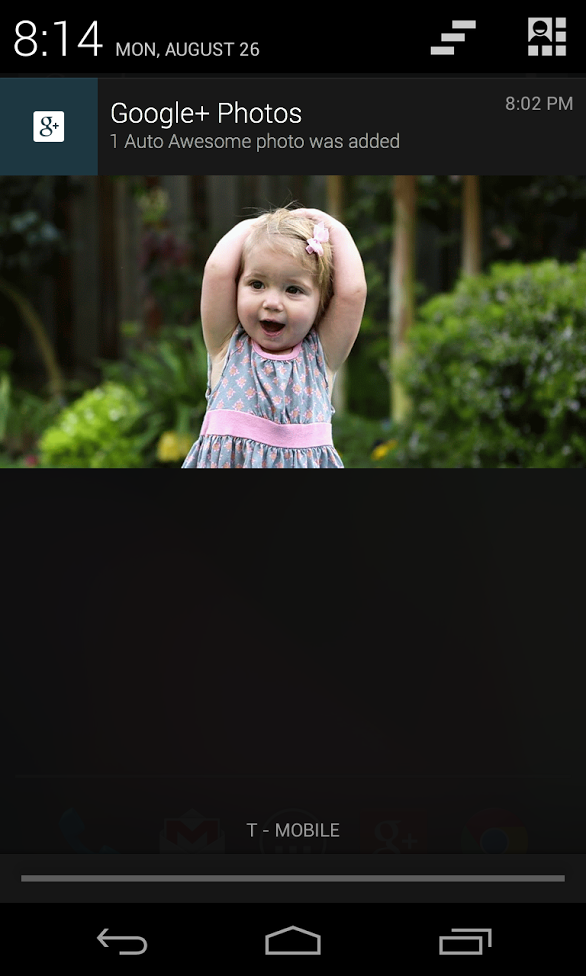
The New version of Google+ for Android rolling out the Play Store right now. While there's no official changelog and the Play Store entry doesn't seem to be telling much, the biggest addition is a new notification for when your photos have been given the  "Auto Awesome"  treatment.Auto Awesome is a processing feature that automatically turns similar photos into collages or animated GIFs.
 2AutoAwesome_Motion
1autoawesome-notification
The Auto Awesome feature happens in the background and there's no reliable way to activate it aside from taking similar photos that Google+ can recognize. The new notification should be useful if you're tired of checking the web version of Google+ to see when your fancy-schmancy animated GIFs are available.
As usual, Google is rolling the update out in stages. The Play Store entry was updated late last night, but there's no telling when you might see the download on your device. Since this process seems to be rather elongated as of late, you can go to the mirror below and download the 4.1.1 APK file for side-loading if you're impatient. Because it's never too soon for automatic GIFs, I suppose.
Via ANDROIDPOLICE
Continue Reading...

Friday, August 23, 2013

Chrome Beta Update Will Introduce New Gestures for Navigating, Advanced Image Searches


The Chrome team announced that beta of Chrome for both desktop and Android will receive updates that introduce easier (or advanced) image searching. On desktop, once you have the new beta installed, you can right click on any image from a website and then choose the option to “Search Google for this image.” On Android, you’ll be able to long press on an image and then choose a similar option. So if you found an image, but wanted to know more about it, this is going to be the quickest and easiest way to do that. 
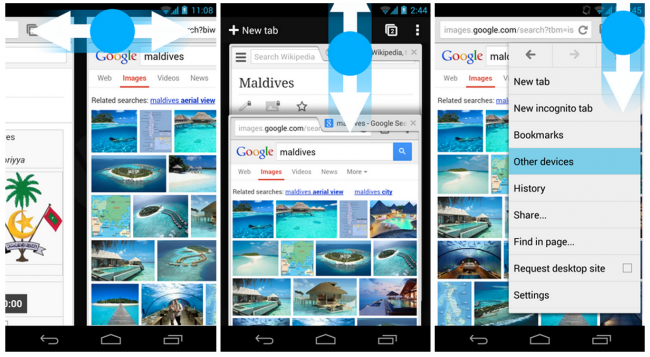
Also on mobile, the Chrome team is introducing new gestures for navigating around the app. As you’ll see in the screenshots above, switching from tabs will be accomplished by swiping across the top portion of the browser, rather than from edge-to-edge like you currently do. They also added in a swipe down gesture from the toolbar to get you into the tab view, and another from the menu button to quickly open the menu and choose an option without lifting a finger.
Can I just say, “It’s about time!” The edge-to-edge tab switching has become a massive pain in the rear recently. If you swipe to quickly, even in the middle of a page, Chrome will flip tabs. With the gesture moving to the top of the browser, this should eliminate those unwanted switches and allow you to browse freely, not gingerly.
The update doesn’t appear to be live yet. Or it also could be a staged rollout.
Continue Reading...

Open Mic+ Looks to Bring Motorola’s Touchless Controls to All Google Now Devices


Android developers always love to step up and make our days so if you are looking to get some voice control action on your new phone, Open Mic+ is something you need to check out.
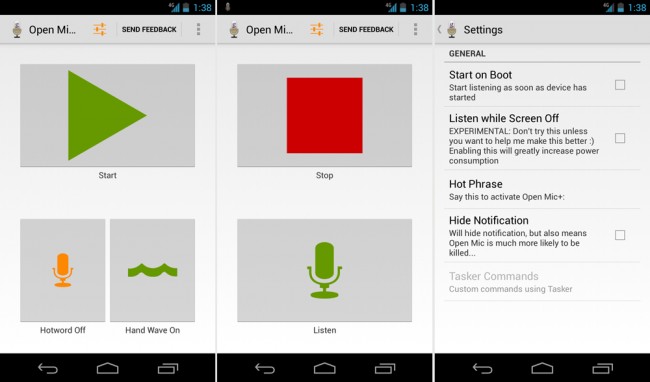
Booting up the app for the first time, you can either start the app listening manually, or you can set a hotword to activate the app. The default phrase is “Okay Google,” but this can be changed to whatever you want. 
The settings menu isn’t large, but very helpful. You can set the app to start when your phone turns on and you can set the app to listen constantly even when the screen is off. Be forewarned though, this will eat up battery like you won’t believe.
 The only way that the Moto X avoids that battery drain is thanks to that low-power CPU core they have dedicated to listening. Did I mention you can pair this app with Tasker to get some really cool stuff going on?
Overall the app is fairly consistent. Using the hotword to get to Google Now works most of the time, but sometimes the phone just doesn’t respond and it takes a few times to get it going. The developer is looking to put a lot of time into this, so expect bugs and kinks to be worked out pretty quickly. And the app is completely free, only caveat is that your device must be Jelly Bean or up for it to work.
Via DroidLife
Continue Reading...

Thursday, August 22, 2013

Facebook Rolls Out Embedded Posts to All Users


Facebook embedded posts are now available for everyone, not just launch partners who had access to the feature when it was first announced in July.
Anyone using a third party website, including users who post to personal blogs or websites, can now embed a public Facebook post directly into their own site. Users can find the line of code needed to embed a post or video by clicking on the arrow in the post's upper right-hand corner.

Facebook originally rolled out the feature last month to news publications like CNN, and Huffington Post. Feedback from the trial run encouraged Facebook to reduce the width of embedded posts on mobile devices to better accommodate the phone screen, according to a Facebook blog post.
Continue Reading...